IPTV on your Firestick — set up in under 10 minutes
Turn any Amazon Fire TV Stick into a complete entertainment system: 30,000+ live channels, every Sky Sports and TNT Sports channel, and 100,000+ films and series on demand — from £4.58/month. This guide walks you through the full setup, step by step.
How to install IPTV on a Firestick — 4 steps
No technical knowledge needed. If you can install a normal app, you can do this.
Step 1 — Enable apps from unknown sources
On your Firestick, go to Settings → My Fire TV → Developer Options and switch on "Apps from Unknown Sources". On newer Fire OS versions, select "Install unknown apps" and enable it for the Downloader app. This lets you install IPTV players that aren't in Amazon's store.
Step 2 — Install an IPTV player app
The two apps we recommend, both free to use with any TellyStream plan:
- IPTV Smarters Pro — easiest for beginners, clean interface, free
- TiviMate — the best TV guide (EPG) and channel management on Firestick
Search for either in the Amazon App Store, or install via the Downloader app if unavailable in your region.
Step 3 — Get your TellyStream login
Choose a TellyStream plan or message us on WhatsApp for a free 24-hour trial. Your login details — username, password and server URL — arrive by email within 5–15 minutes.
Step 4 — Log in and watch
Open your player app, choose "Login with Xtream Codes API", enter the three details from your email, and your full channel list loads immediately. Sky Sports, TNT Sports, BBC, ITV, international channels and the on-demand library are all there from the first second.
Why the Firestick is the best IPTV device in the UK
A Fire TV Stick is the cheapest way into IPTV in the UK: a stick most homes already own, a free player app, and a TellyStream plan carrying Sky Sports, TNT Sports and the terrestrial channels. Three things make it hard to beat.
Cheap hardware
A Fire TV Stick HD costs around £39.99 — and it's regularly on sale for under £25. One small stick replaces a £200+ set-top box.
4K performance
The Fire TV Stick 4K and 4K Max handle Ultra HD sports streams flawlessly, with Wi-Fi 6 support on the Max for stutter-free peak-time football.
Portable
Take your entire TV package anywhere — plug the stick into any TV with an HDMI port, at home, in a hotel, or abroad.
Which Firestick model should you buy?
Fire TV Stick HD (£39.99) — fine for HD channels on a 1080p TV. The budget pick.
Fire TV Stick 4K (£59.99) — the sweet spot. Smooth 4K sports streams, Dolby Vision and Atmos support.
Fire TV Stick 4K Max (£69.99) — fastest processor and Wi-Fi 6E. Best if several devices share your network at peak times.
All prices are Amazon UK RRP as of July 2026 — all three models work perfectly with TellyStream.
Firestick IPTV — frequently asked questions
Does IPTV work on all Firestick models?
Which IPTV app is best for Firestick?
Do I need a VPN for IPTV on Firestick?
How fast does my internet need to be?
Can I try IPTV on my Firestick before paying?
Which Firestick model you actually need
Not every Fire TV device handles IPTV equally, and the difference shows up exactly when you least want it: during fast-moving sport.
| Model | Handles 4K IPTV | Worth buying in 2026 |
|---|---|---|
| Fire TV Stick 4K Max | Yes, comfortably | Best choice |
| Fire TV Stick 4K | Yes | Good value |
| Fire TV Stick (HD, 3rd gen) | 1080p only | Fine if your TV is not 4K |
| Fire TV Stick Lite | 1080p, slower interface | Usable, not ideal |
| Fire TV Stick 1st/2nd gen | Struggles | Replace it |
| Fire TV Cube | Yes, fastest | Overkill unless you want voice control |
The giveaway that your stick is the bottleneck rather than your broadband: the menus feel sluggish before you have pressed play at all, and it stutters on everything rather than only on live sport. A current-generation stick is about forty pounds and will outrun the apps built into most televisions made before 2018.
Installing IPTV on Firestick, properly
Ten minutes on a quiet evening. Not fifteen minutes before kick-off.
Turn on apps from unknown sources
Settings, then My Fire TV, then Developer Options, then enable installing from unknown sources. This is a standard Android setting rather than anything unusual.
Install a downloader tool
Search the Amazon app store for a downloader and install it. That is what fetches the player.
Install the player and sign in
Enter the address you were given, install, then paste your login. Paste rather than type — a long case-sensitive username entered on a Fire remote is where the overwhelming majority of failed setups happen.
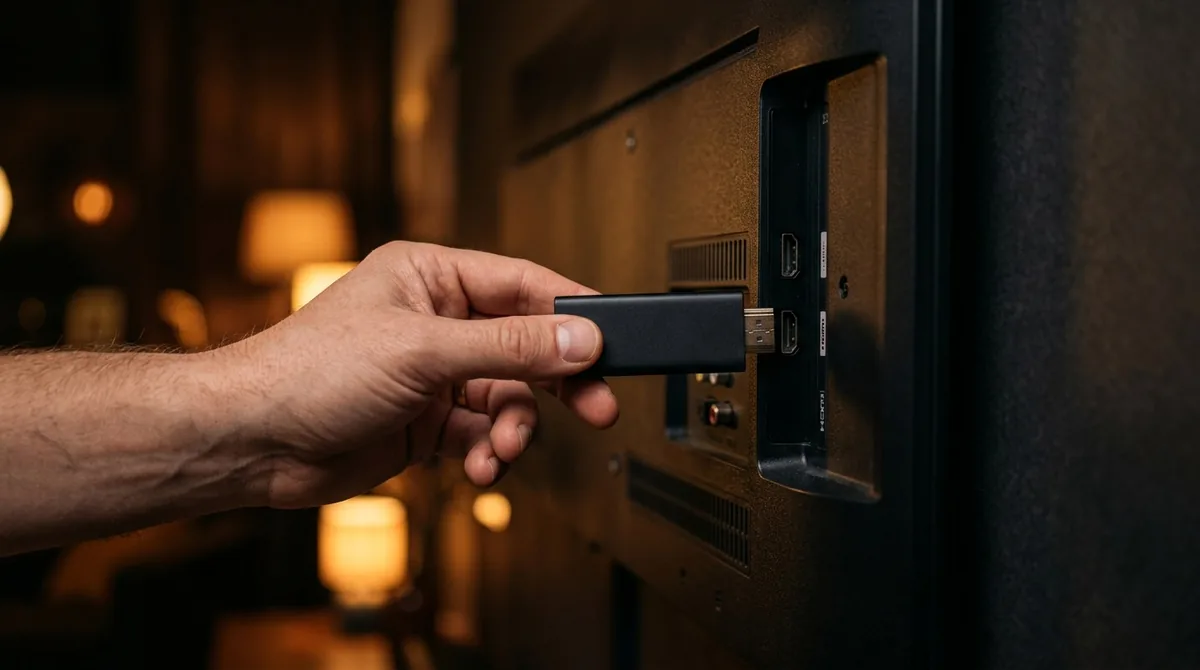
Plug it into the right HDMI port
Use a port that supports HDMI 2.0 or better if you want 4K. On many televisions only one or two ports do, and they are usually labelled.
Clear the cache, monthly
This is the single most useful maintenance habit for anyone running IPTV on Firestick, and almost nobody does it.
A Firestick has very little internal storage. Streaming apps accumulate cached data steadily, and once that storage fills the device starts stuttering in a way that looks exactly like a network problem. People spend weeks blaming their broadband for something a thirty-second cache clear would have fixed.
Go to Settings, then Applications, then Manage Installed Applications, then your player, then Clear Cache. Do not press Clear Data, because that wipes your login and you will have to set it up again.
Once a month is enough on a stick in daily use.
Wired beats wireless, even on a stick
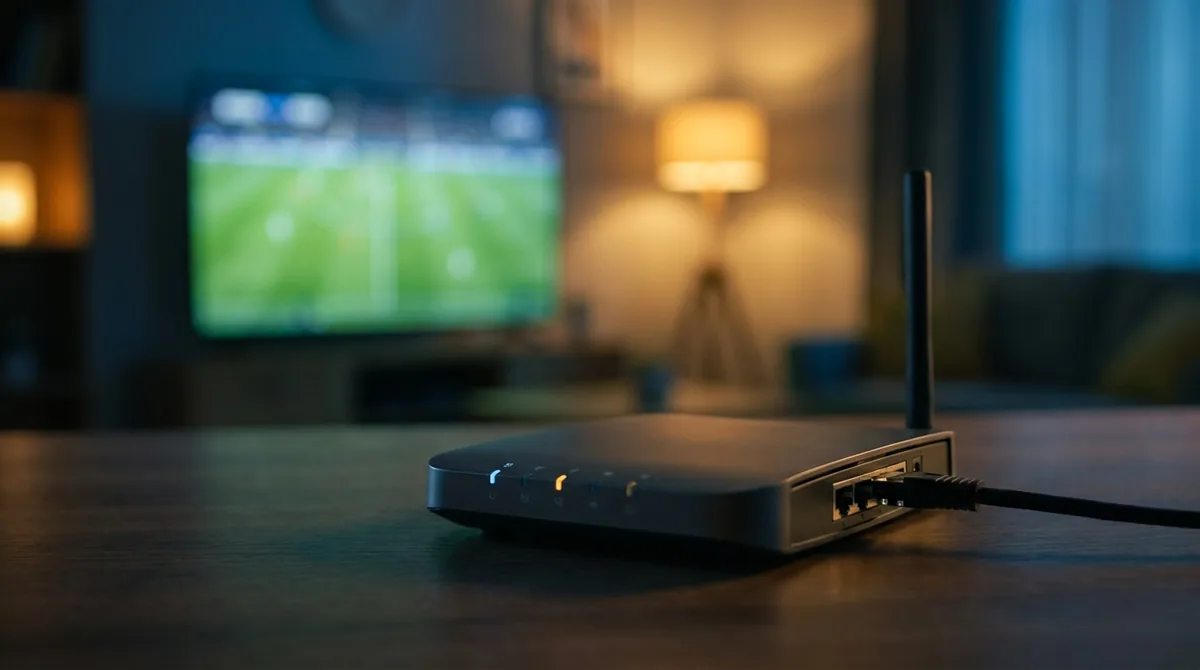
Most complaints about IPTV quality on Firestick are really Wi-Fi complaints, and the fix costs less than a pint.
Amazon sells an ethernet adapter that plugs into the Firestick's power port and gives it a wired connection. Combined with a cable it removes interference, wall attenuation and contention with every other device in the house in one go. If your television is anywhere near the router, this is the highest-value twenty pounds you will spend on your setup.
If a cable is genuinely impossible, at least check which band the stick is on. Routers broadcast both 2.4 GHz and 5 GHz, and the 5 GHz band is much faster and far less congested at short range. Plenty of devices join the slow one by default and stay there for years.
| Quality | Speed needed | Realistically |
|---|---|---|
| 4K UHD | ~25 Mbps sustained | Fine on fibre, tight at peak on older lines |
| 1080p HD | ~8 Mbps sustained | Comfortable nearly everywhere in the UK |
| 720p | ~4 Mbps sustained | Works on almost any connection |
Common Firestick problems and what they mean
Four things account for nearly every support message about IPTV on Firestick.
Buffering only during live sport
Peak-hour congestion rather than a fault. Everyone in the country is streaming at three on a Saturday. Run a cable, or drop to 1080p, which nobody notices on a 43-inch screen from three metres.
Stick runs hot and the interface lags
Storage is full or the device is too old. Clear the cache first; if that does not fix it, the hardware is the ceiling.
App disappears after an update
Fire OS occasionally removes sideloaded apps during major updates. Reinstalling takes five minutes and your login still works.
Everything buffers on every device
That is your broadband, not the stick. Run a speed test at 8pm rather than midday, because midday tells you nothing about how your line behaves when it matters. The full setup guide covers this for other devices, and there is a Smart TV walkthrough if you would rather skip the stick entirely.
Getting the picture quality you paid for
A 4K stick plugged into a 4K television does not automatically give you a 4K picture, and several small settings sit between you and the quality you are paying for.
Check the HDMI port
Only some ports on a television support HDMI 2.0 or better. On many sets just one or two do, usually labelled on the back. Plugging a 4K stick into an older port silently caps you at 1080p.
Set the display output manually
Fire TV defaults to automatic, which sometimes settles on a lower resolution and stays there. Settings, Display and Sounds, Display, Video Resolution. Set it explicitly rather than leaving it to guess.
Match the app's stream quality
Most players have their own quality setting separate from the device. If your line cannot hold 25 Mbps at peak, deliberately choosing 1080p gives a better watch than 4K that freezes every ninety seconds.
Turn off unnecessary processing
Television motion smoothing makes live sport look strange and adds input lag. Most sets have it on by default under a name like motion interpolation or smooth motion. Turning it off is a genuine improvement for football.
Ready in the next 15 minutes
Grab your Firestick remote, claim a free 24-hour trial, and see the quality for yourself — no card needed.